Mobile Devices
- Open the Fableborne app on your mobile device.
- From the home screen, tap the gear icon located at the upper right corner of your screen.
- Tap the Fableborne Website button at the bottom of your screen.
- Tap the three-line menu at the upper right corner of your screen, then scroll down to Sign In.
- Choose your preferred Sign In method to access your account. Make sure it’s the one you bound to your Pixion ID!
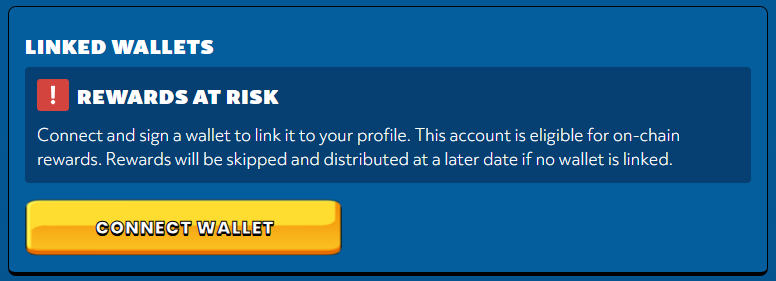
- Navigate to the Linked Wallets section of your screen, then tap Connect Wallet.
- Choose the wallet you want to bind to your account. Scan the QR code using your wallet’s app and follow the instructions accordingly.
- You will get a prompt asking you to sign in and accept the Terms of Service and Privacy Policy to bind your wallet to your Pixion ID. Tap Sign, and your wallet has now been added to your Pixion ID.
- To unlink a wallet from your Pixion ID, just tap the Unlink button next to the wallet you’d like to remove.
Desktop
- Sign in to your account using your Apple, Google or X accounts. Don’t forget to check our list of recommended browsers [ LINK ] for better performance.
- Click the Account button located in the upper right corner of your screen.
- Find the Linked Wallets section, and click Connect Wallet.
- Choose the wallet that you want to bind to your account. Then scan the QR code using your wallet’s app.
- We support Ronin and Metamask, but you can use Wallet Connect for other wallets.
- On your wallet’s app, you will get a Connect Request prompt. Tap Connect to proceed to the next step.
- You will then get a prompt asking you to sign in and accept the Terms of Service and Privacy Policy to bind your wallet to your Pixion ID. Tap Sign, and your wallet has now been added to your Pixion ID.
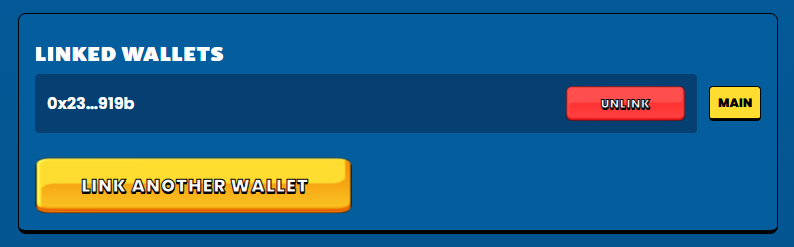
- If you’d like to link another wallet, repeat steps 3 to 6 and you should be good to go (keep in mind that once you’ve bound a wallet to your Pixion ID, the button will change from Connect Wallet to Link Another Wallet).
- To unlink a wallet from your Pixion ID, just tap the red Unlink button next to the wallet you’d like to remove.